To create many unique codes that all follow the same rules, set up and save one discount code, then add bulk codes to it. You can generate up to 10,000 random codes at a time or import your own list. Every code gives exactly the same offer as the discount they belong to, and changing that discount changes it for every code.
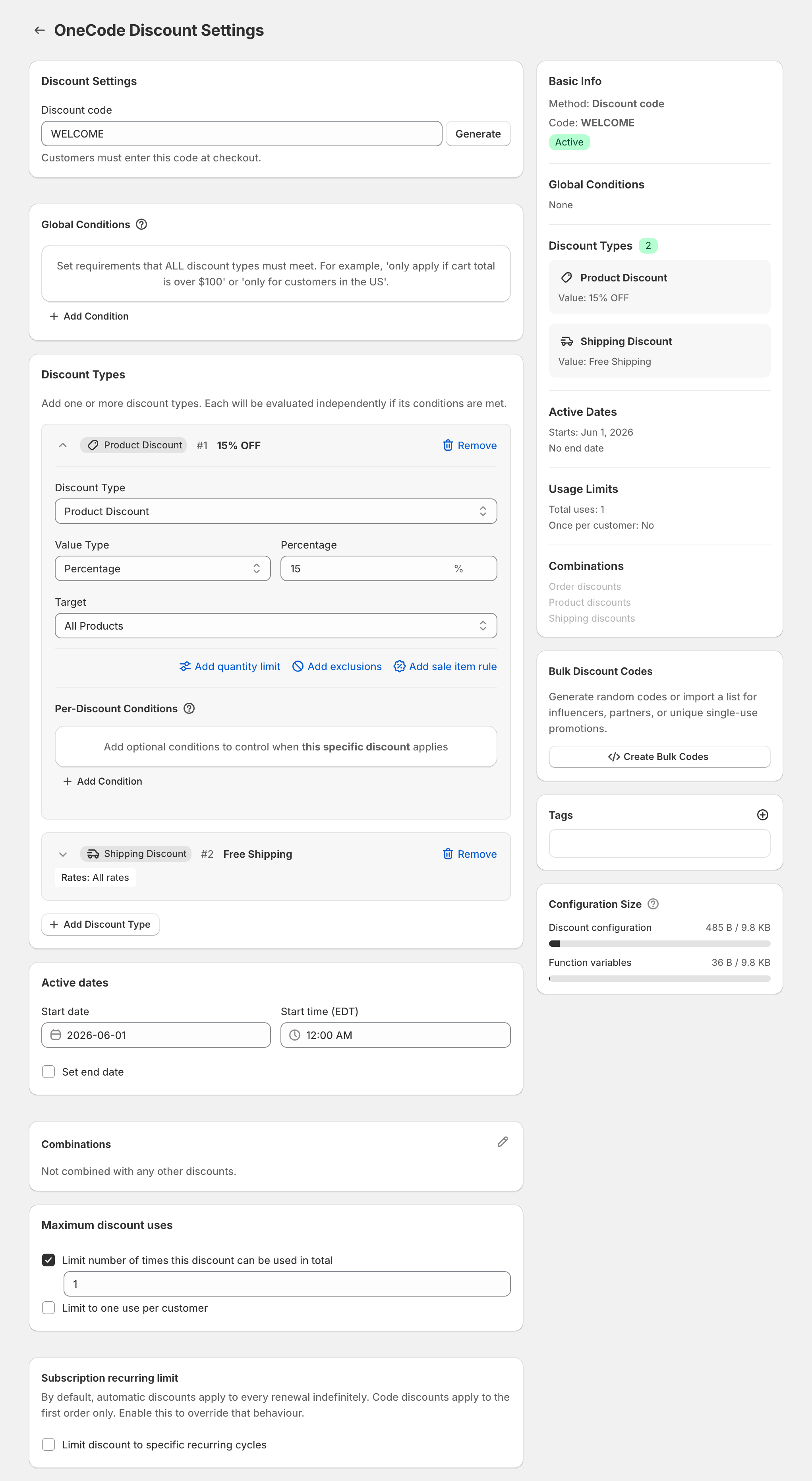
With OneCode: Stackable Discounts, that shared offer can include more than one kind of discount, for example 15% off products and free shipping. Bulk codes are only for discount codes, not automatic discounts.
For example, the discount WELCOME gives 15% off and free shipping. You generate 100 codes from it, such as WELCOME-7KQ2MX9A. A customer who enters one of those codes on a $60 order gets $9 off and free shipping, the same as with any other code from the batch.
Set it up
- Create a discount code with the offer you want, and click Save discount. Before the first save, the Bulk Discount Codes card shows “Save discount first to enable”.
- On the discount’s edit page, click Create Bulk Codes in the Bulk Discount Codes card on the right. Once the discount has bulk codes, the button reads Manage Bulk Codes with the number of codes.
- On the Bulk Code Creation page, click Generate Codes or Import CSV.
Choose the primary code, the one you created the discount with, before you add bulk codes. Once a discount has bulk codes, renaming its primary code is not saved.
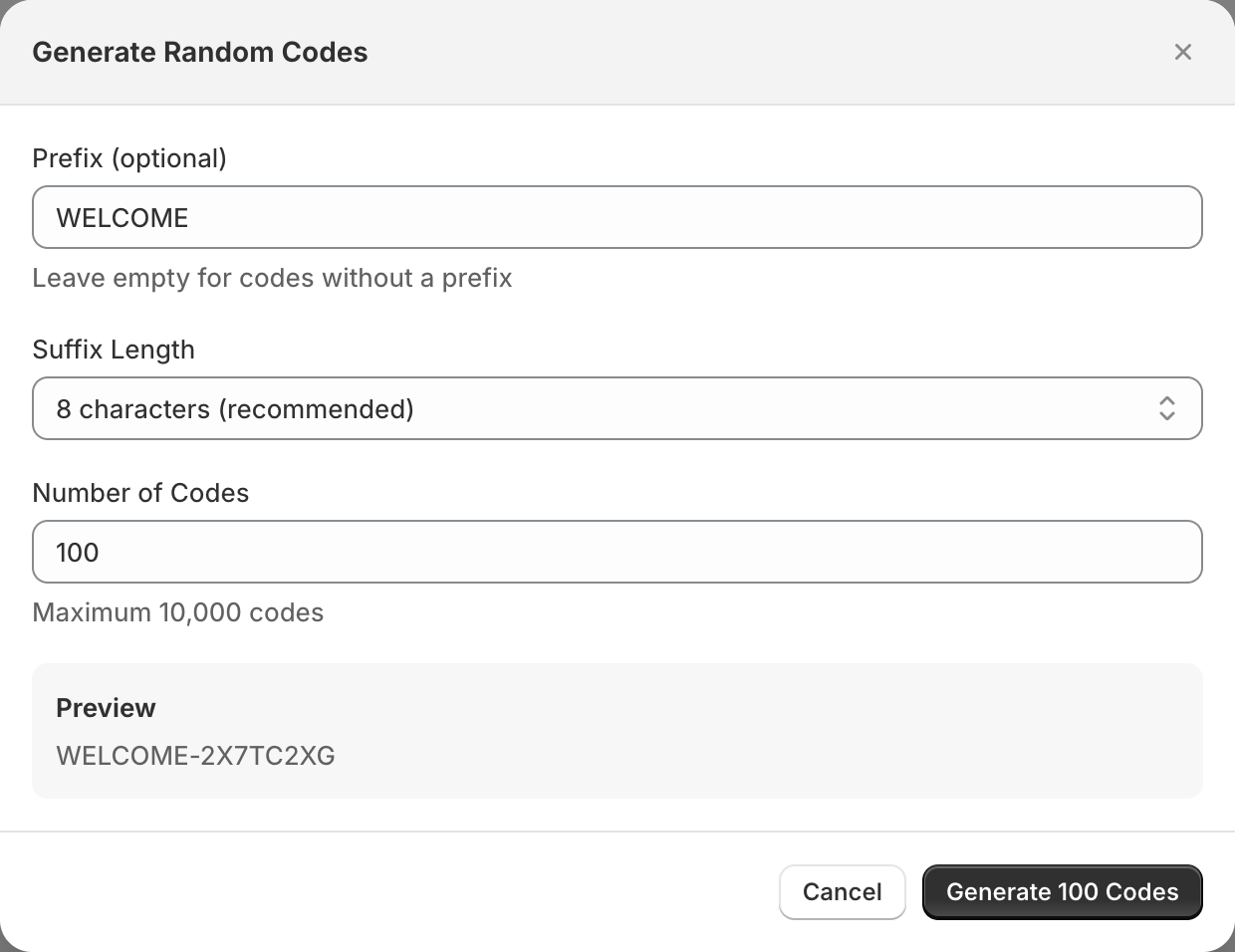
Generate random codes
- Prefix (optional): letters, numbers, hyphens and underscores, for example
WELCOME. OneCode adds the hyphen after the prefix, so typeWELCOME, notWELCOME-. - Suffix Length: 4, 6, 8, 10 or 12 random characters. 8 is recommended.
- Number of Codes: up to 10,000 per batch. Run another batch if you need more.
The random part never uses characters that are easy to mix up: 0, O, 1, I and L.
Import your own codes
Upload a .csv or .txt file with up to 10,000 codes, one per line or separated by commas. Each code can be up to 255 characters. Leave out any header row such as “Code”, or it will be imported as a code. Duplicates are removed, even when they differ only in capital letters.
After the codes are created
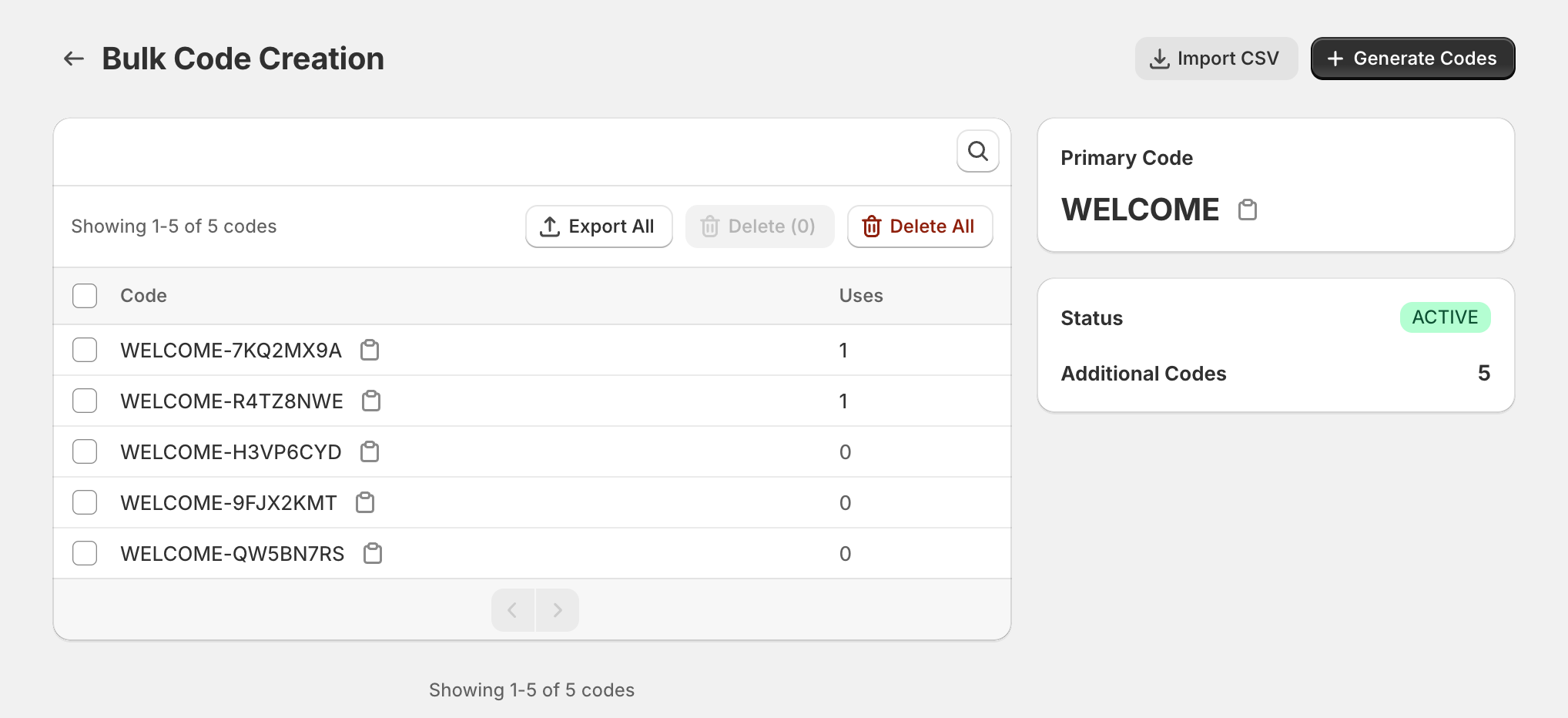
The bulk codes page lists every code with its number of Uses. You can export the codes as a file, or delete some or all of them. The primary code is always kept.
Single-use or reusable
Usage limits are set on the discount, in Maximum discount uses, and Shopify counts them for each code separately:
- One use per code: tick Limit number of times this discount can be used in total and enter
1. Each code then works for one order. This suits welcome emails and printed vouchers. - Reusable codes: leave the total limit off. This suits one code per creator, where each code is used many times.
What to use them for
- A code for each creator: import codes such as
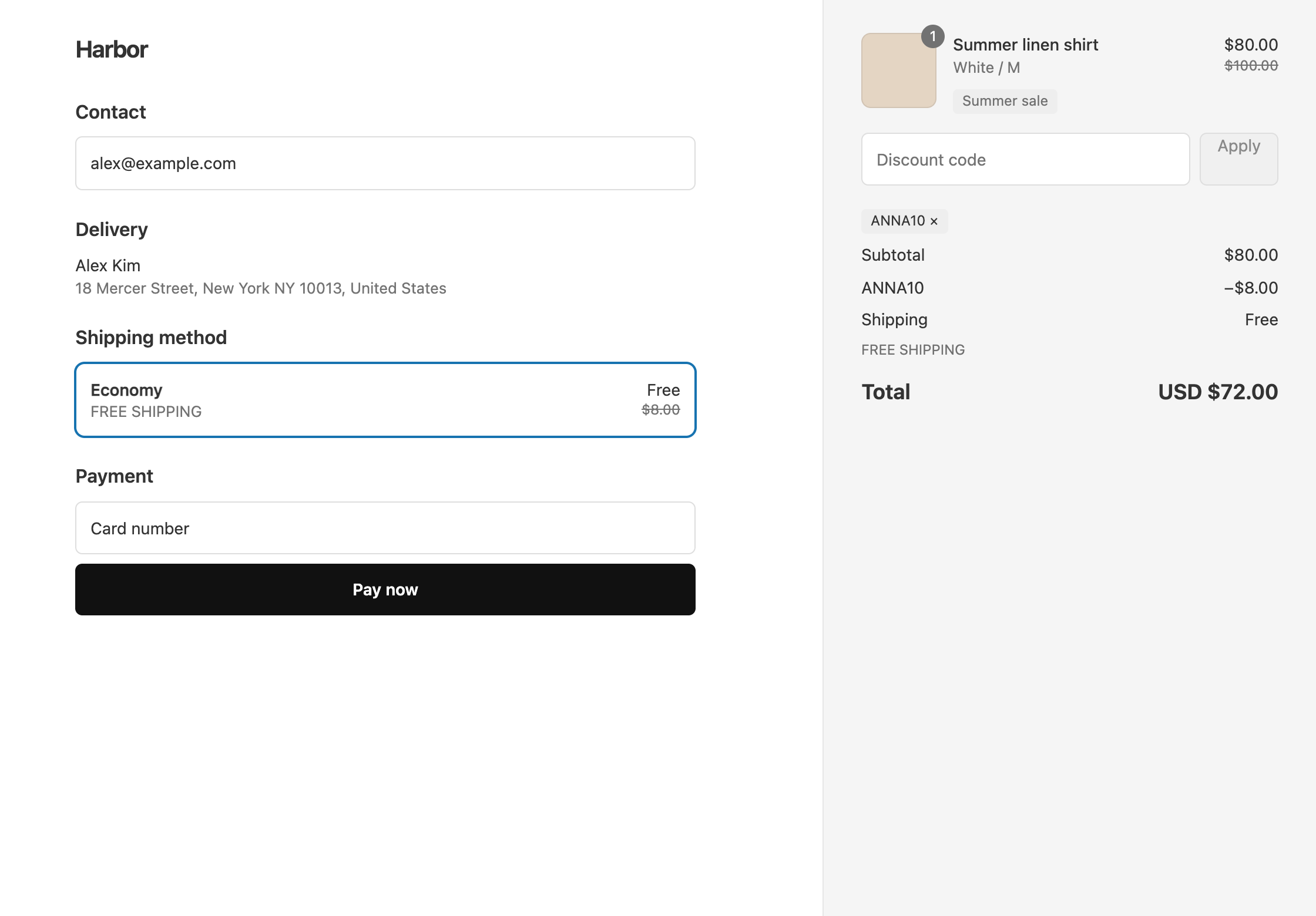
ANNA10andJOE10, and use the Uses count to see who drove sales. See influencer codes during a sale. - A unique welcome code for each subscriber: OneCode does not send emails, so export the codes and load them into your email tool’s unique coupon feature. Guests can use them without logging in. See welcome discounts.
- Printed vouchers: generate single-use codes and print one on each card or insert.
OneCode costs $9.90 USD every 30 days after a 7-day free trial, billed by Shopify. Install it from the Shopify App Store.