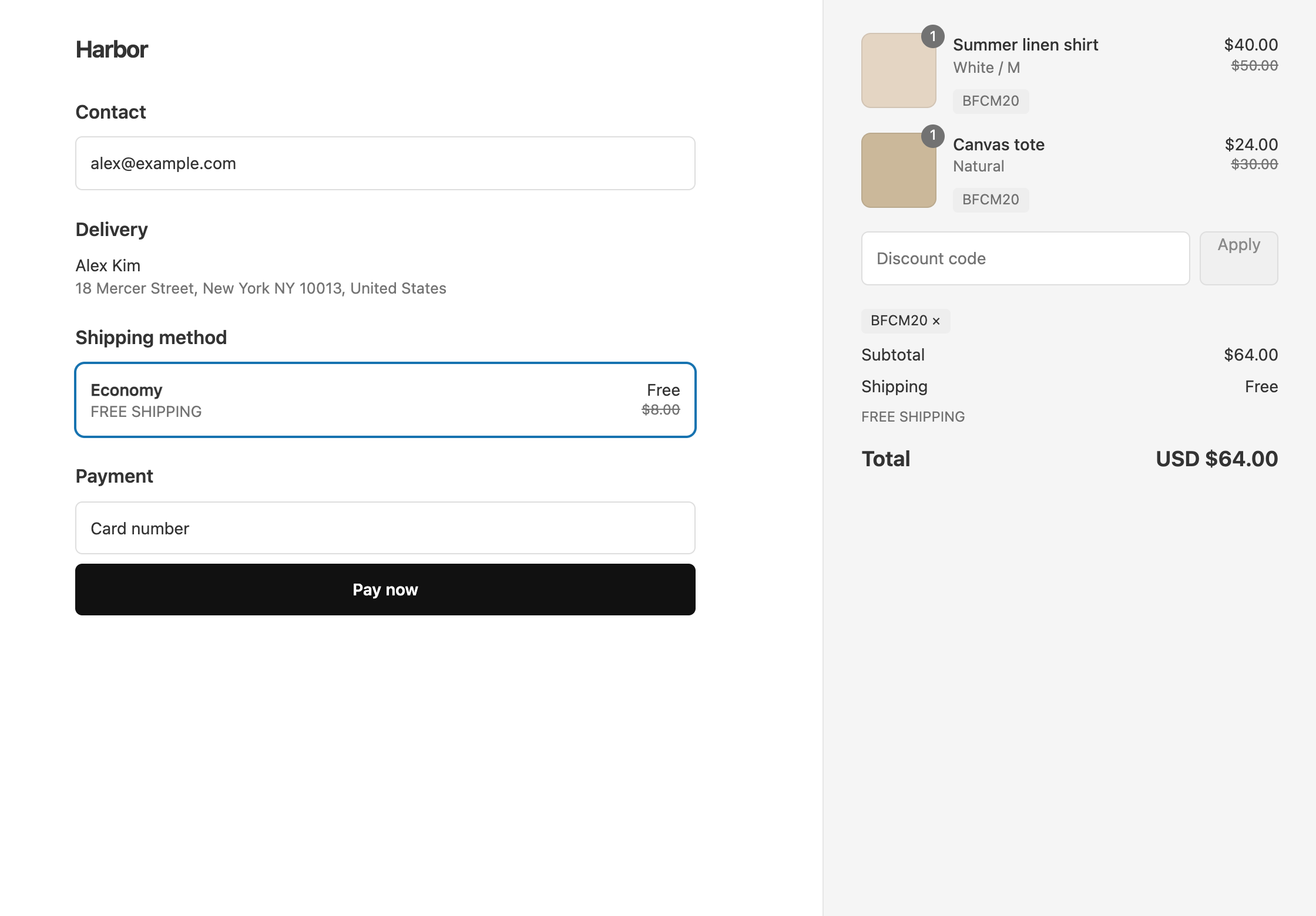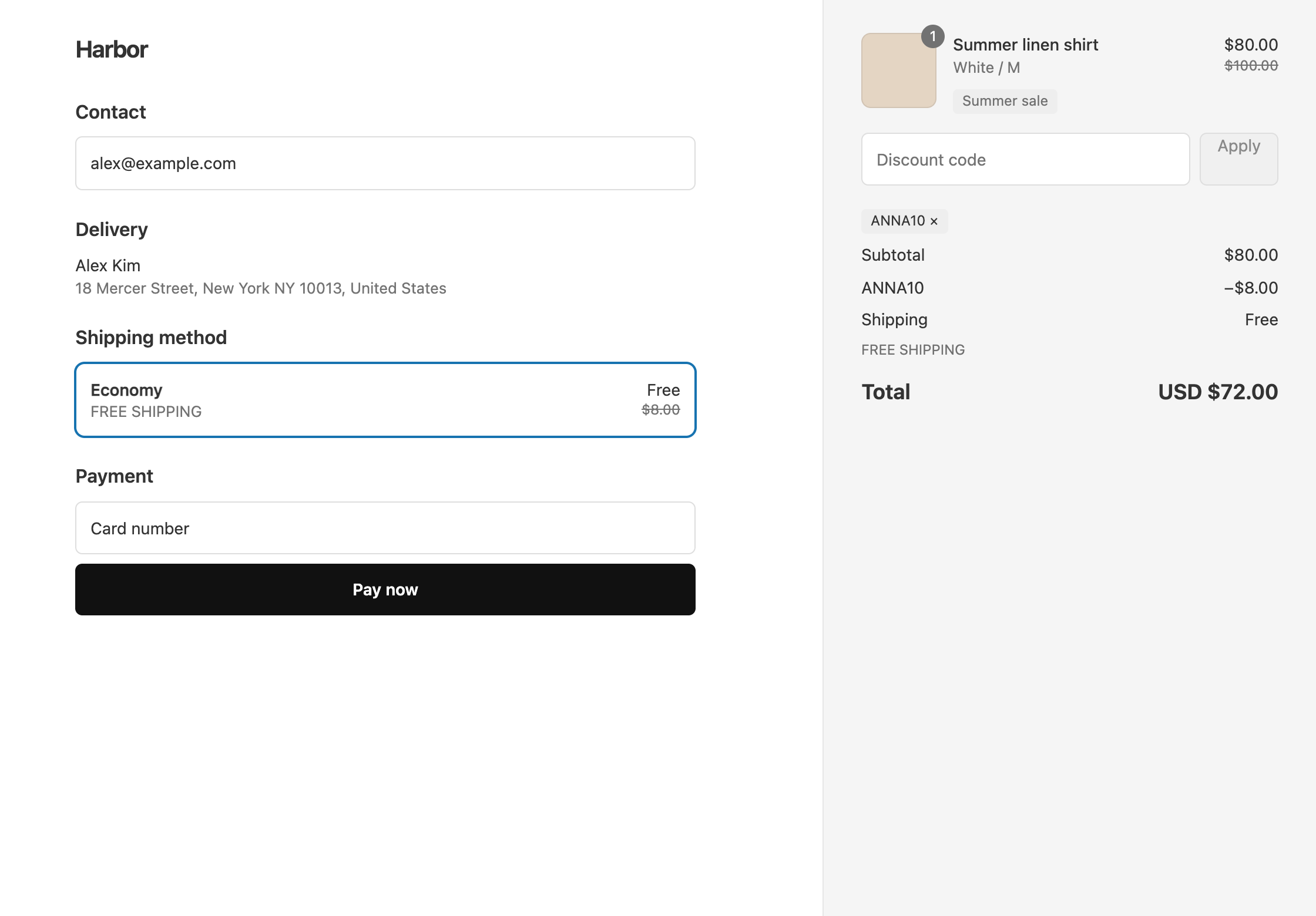
Your welcome popup and first email should show one code that gives the whole offer. With OneCode: Stackable Discounts, the code WELCOME10 takes 10% off every product and makes shipping free. Shopify’s own discount codes each hold one kind of discount, so without an app this offer would be two codes for a new customer to find and enter.
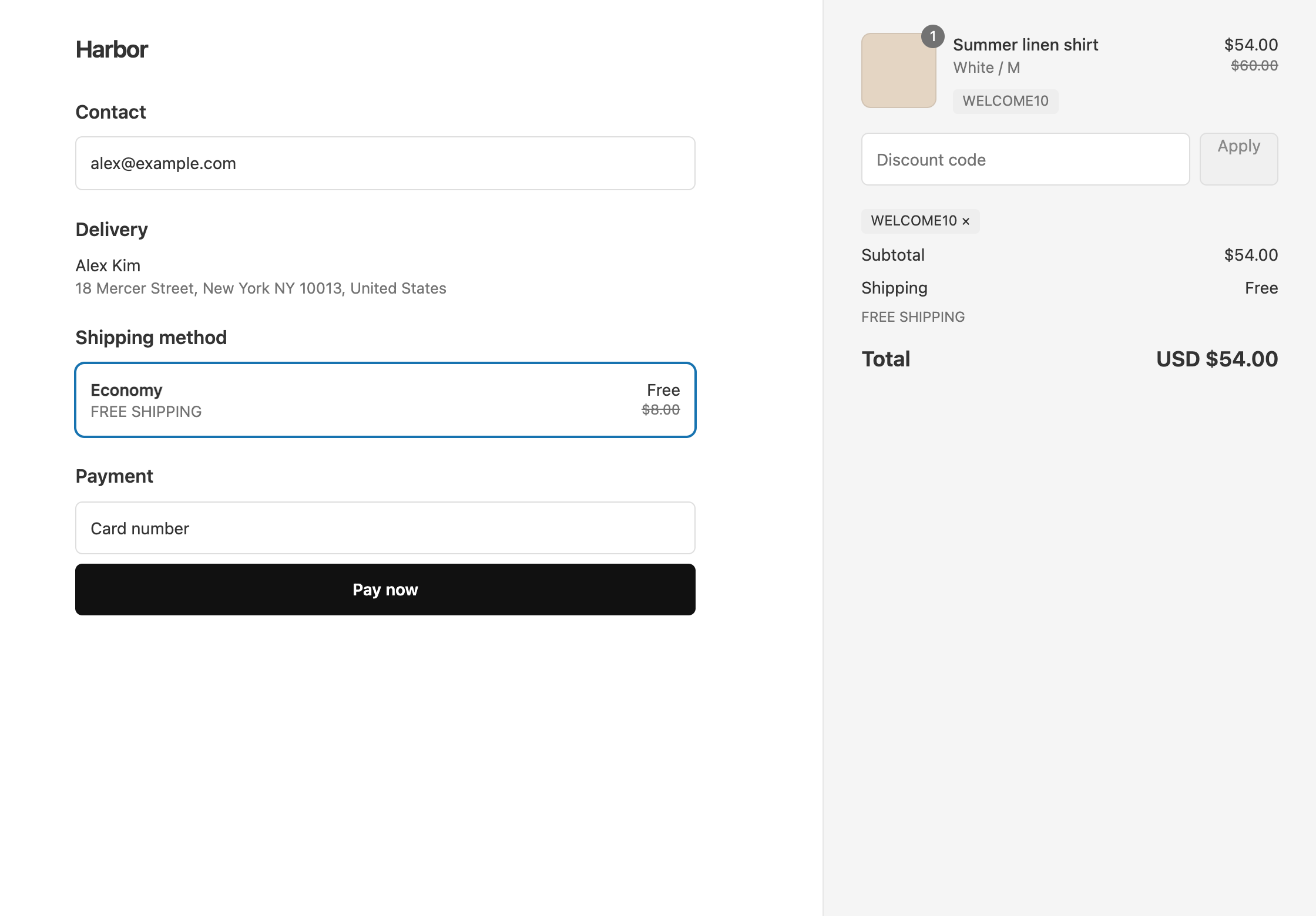
A $60 first order gets $6 off and free shipping, so the customer pays $54.
Set up the code
- Click Create discount and enter
WELCOME10. - Click Add Discount Type and enter
10in Percentage. Keep Target as All Products. - Click Add Discount Type, set Discount Type to Shipping Discount, and keep Free Shipping.
- In Maximum discount uses, tick Limit to one use per customer.
- Click Save discount.
Full steps: a WELCOME10 code with 10% off and free shipping.
Put it in your flow
Use the exact same code, WELCOME10, in the popup and in the first email. Describe it as one offer, 10% off and free shipping, so customers don’t go looking for a second code.
Keep existing customers out
Limit to one use per customer stops a second use, but it doesn’t check order history. A customer who has ordered ten times and never used WELCOME10 can still use it once. There are two ways to narrow it.
- Customer segment: in Shopify, go to Customers > Segments and create a segment with the filter
number_of_orders = 0. In OneCode, add the Global Condition Customer Segment and pick that segment. At checkout, Shopify matches the segment by the customer’s account, email or phone number, so newsletter subscribers who haven’t ordered yet qualify. A shopper with no customer profile doesn’t match, so have the popup collect an email address before it shows the code. - Unique codes: create a separate discount with the same offer, tick Limit number of times this discount can be used in total, and enter
1. Then use Create Bulk Codes to generate the codes, export them, and load them into your email tool so each new subscriber gets a different code. Guests can use these codes without an account. Use a separate discount because the total limit applies to every code on the discount, includingWELCOME10. This limits the offer to people you emailed, not to first orders. See bulk unique codes.
Other welcome offers
For $10 off a first order of $50 or more, replace the 10% product discount with an Order Discount, set Value Type to Fixed Amount, enter 10, and add the condition Cart Subtotal, Greater than or equal to, 50.
Subscriptions
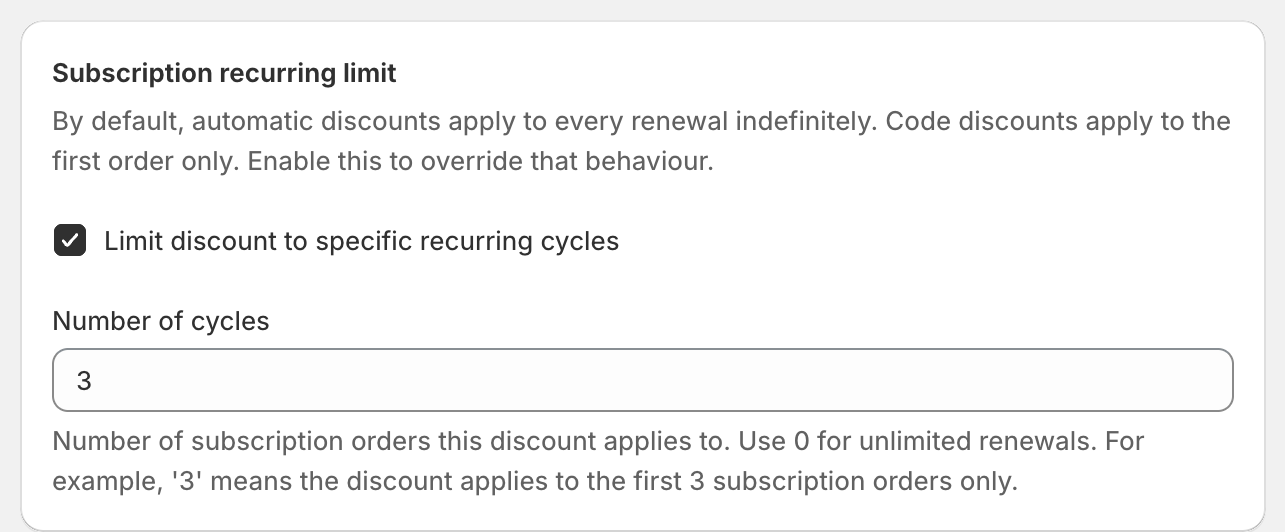
If a customer starts a subscription with the code, a code discount applies only to the first subscription order by default. To cover more orders, open Subscription recurring limit, tick Limit discount to specific recurring cycles, and enter the Number of cycles. With 3, the discount applies to the first three subscription orders, counting the first one. See Shopify subscription discounts and renewal limits.
OneCode costs $9.90 USD every 30 days after a 7-day free trial, billed by Shopify. You can install it from the Shopify App Store.